 By Alex Mercer · October 9, 2026
How to use rekordbox goes wrong fastest when you treat it like a music player instead of a DJ prep room.
Learning how to use rekordbox is really learning three jobs: organizing tracks, preparing them so they mix cleanly, and sending them to the setup you will actually play on. Rekordbox is DJ software, meaning it helps you analyze music, set cue points, rehearse blends, and export USB drives for Pioneer DJ and AlphaTheta players such as the CDJ-3000. The trap is opening it, dragging in 400 downloads, and hoping the software will think like a DJ for you. It will not. Think of it like packing a gig bag. If your headphones, cables, USBs, and set notes are thrown in loose, the first problem arrives before the first drop.
How to use rekordbox Without Building Bad Habits
Rekordbox is like a record crate with a search bar. If the crate is messy, the search bar only helps you find the mess faster.
The first fix is mental, not technical. Use Rekordbox as your preparation station, then your performance tool. Preparation means checking beatgrids, setting cue points, adding playlists, and exporting properly. Performance means mixing on a laptop, controller, or club players.
How to use rekordbox for beginners: Start with one playlist
Do not import your whole hard drive on day one. Start with 25 to 40 tracks you actually like and know. That is enough to practice phrasing, beatmatching, and transitions without drowning in options.
A playlist is a hand-picked folder inside Rekordbox. Build one simple playlist called something like “House Practice 124-128” or “First Open Format Set.” Keep it boring. Boring folder names save sets.
The three views that matter first
Rekordbox has different areas, but beginners mainly need Collection, Playlists, and Export or Performance mode. Collection is your full library. Playlists are smaller crates. Export mode prepares USB drives, while Performance mode lets you DJ from the computer.
- Collection: every track Rekordbox knows about.
- Playlist: a smaller set of tracks for a mood, tempo, or gig.
- Deck: the virtual player where a track loads and plays.
- Start with 25 to 40 tracks, not your entire downloads folder.
- Use playlists by energy, tempo, or set purpose.
- Check every track before trusting the analysis.
- Keep file locations stable so Rekordbox does not lose tracks.

Set Up Rekordbox 7 on Mac or Windows Before Importing
Setup is like tuning a guitar before recording. You can play without doing it, but every mistake after that gets harder to diagnose.
If you searched for how to use Rekordbox 7 or how to use Rekordbox on Mac, start here. Rekordbox 7 runs on modern Mac and Windows systems, but smooth DJ practice depends on more than opening the app. Audio output, analysis settings, and file storage matter from the first session.
Install, sign in, and choose the right mode
Download Rekordbox from the official site, install it, and sign in with an AlphaTheta account. You can use core library and export features without buying hardware. Some controller and cloud features depend on the plan or connected device.
Use Export mode when preparing USBs. Use Performance mode when mixing from the laptop, keyboard, or a controller. Switching modes is normal. It does not mean you did anything wrong.
Set audio before you practice
Audio settings decide where the sound comes out. On a laptop, that might be built-in speakers or headphones. With a controller such as a DDJ-FLX4, the controller becomes the audio interface, meaning it handles sound output for the master and headphones.
Set your buffer size high enough to avoid crackles. A buffer is a tiny safety delay for audio processing. If sound clicks, raise it. If controls feel late, lower it slightly.
- Keep music in one main folder instead of scattered desktop downloads.
- Turn on track analysis for BPM and key when importing.
- Use normal gain levels and avoid red meters.
- Check headphone cue routing before mixing.
Get Music Into Rekordbox and Build a Clean Library
Importing music is like stocking a kitchen. Random ingredients everywhere do not become dinner just because they are edible.
Rekordbox does not magically own your music. You add audio files from your computer, then the software analyzes them. Analysis means Rekordbox estimates BPM (beats per minute), musical key, waveform shape, and beatgrid timing.
How do you get music on Rekordbox?
Use File > Import, drag files into the Collection, or drag a folder into the browser. WAV, AIFF, FLAC, MP3, and AAC files are common choices. For DJing, use full-quality files when you can. A 128 kbps MP3 might sound passable at home and ugly on a loud system.
After importing, let Rekordbox analyze the tracks. Then check the results. The software can misread intros, live drums, edits, and tracks with long breakdowns.
Tags beat memory
Memory is unreliable during a set. Tags are better. Add genre, energy, vocal, clean, explicit, warm-up, peak-time, or closing notes. My rule: if a detail helps you choose the next track under pressure, tag it.
Use comments for human notes such as “mix out before second breakdown” or “works after 126 BPM tech-house.” These are more useful than perfect genre labels.
- Import from stable folders, not temporary download locations.
- Analyze BPM, key, phrase, and waveform before practicing.
- Add comments for mix notes you will understand at 1 a.m.
- Use playlists for set flow, not just genre sorting.
- Back up your music folder and Rekordbox database regularly.
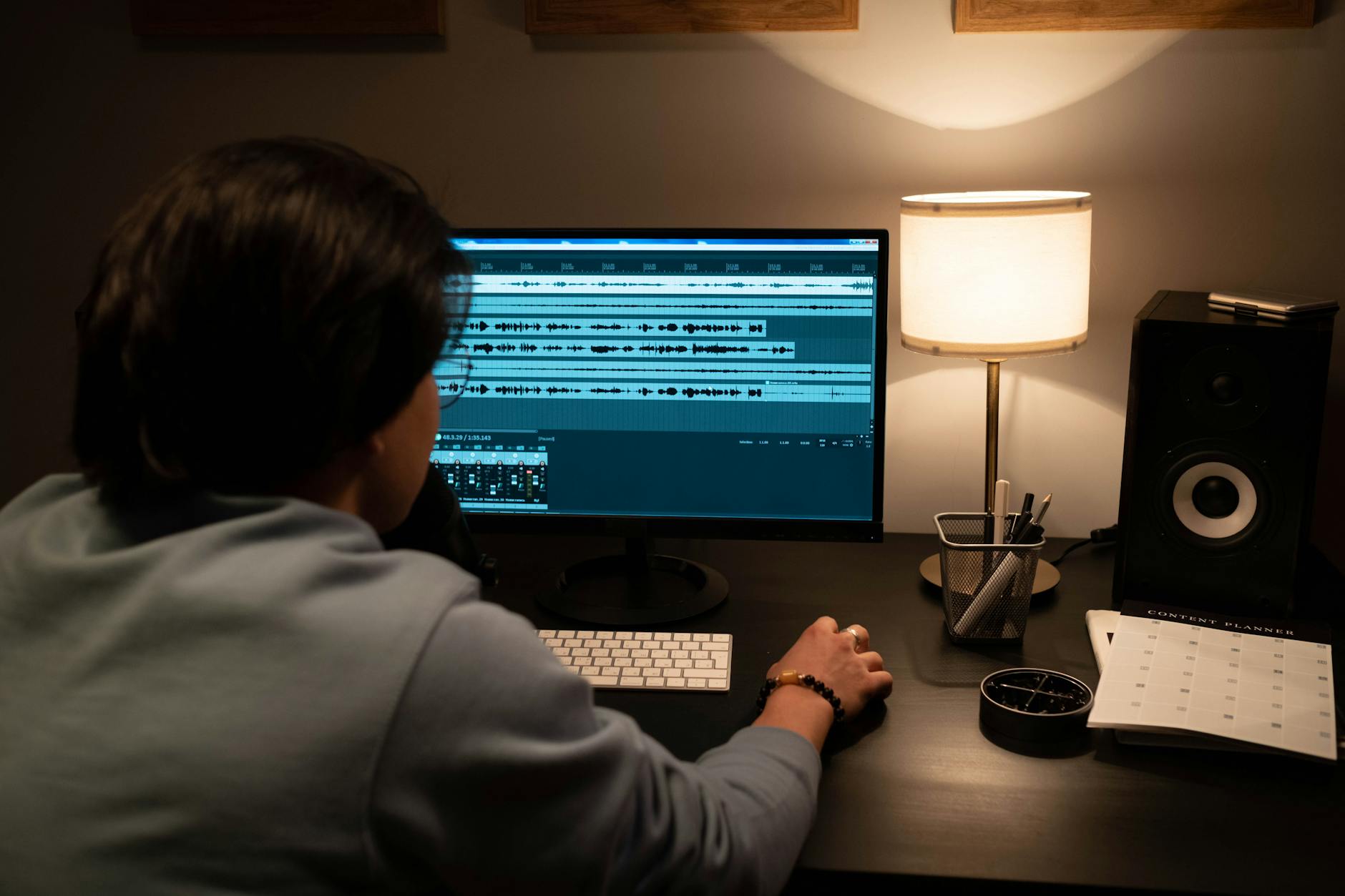
Fix Beatgrids, Cue Points, and the Rule of 32
A beatgrid is like graph paper under your track. If the lines are shifted, every loop and sync move lands crooked.
A beatgrid is Rekordbox’s map of where beats sit in the audio. Cue points are saved markers you can jump to, often at an intro, vocal, breakdown, drop, or safe mix-out point. Hot cues are performance cue buttons you can trigger instantly.
Check the first downbeat
The downbeat is the first strong beat of a bar, usually the “one.” Load a track, zoom into the waveform, and check whether the grid marker lands on the first kick or clear transient. A transient is the sharp start of a sound, like the click of a kick drum.
If the grid is off, use Rekordbox’s grid adjust tools to move it. For most electronic tracks, once the first downbeat and BPM are correct, the rest follows.
Use 4-bar and 8-bar cues before fancy tricks
The rule of 32 in DJing means many dance tracks are built in 32-beat phrases, which equals 8 bars in 4/4 time. A bar is a small unit of music, and 4/4 means four beats per bar. Drops, breakdowns, and new drum layers often arrive every 16 or 32 beats.
Set cues at phrase starts: intro, first bassline, breakdown, drop, and outro. This makes mixing feel like lining up train platforms rather than guessing when the doors open.
- Place the first grid marker on the first real downbeat.
- Use cue colors consistently, for example intro, drop, breakdown, outro.
- Set memory cues for structure and hot cues for performance moves.
- Practice counting 1 to 32 over tracks until phrase changes feel obvious.

Practise Mixing Without a Controller
Practicing without a controller is like learning manual timing on a kitchen timer before using a full oven panel. It is limited, but it teaches the core rhythm.
If you searched how to use Rekordbox without controller, yes, you can start with only a laptop. It is not as tactile as real faders and jog wheels, but it is good enough for library prep, phrase training, and basic blends.
Use keyboard shortcuts for simple two-deck practice
In Performance mode, load one track to Deck 1 and another to Deck 2. A deck is one virtual player. Use the spacebar, transport buttons, or mapped shortcuts to start and stop. Keep the first sessions simple: start Track B on the first beat of a 32-beat phrase while Track A is playing.
Keep levels conservative. Aim for meters bouncing below red, with roughly -6 dB of headroom. Headroom is spare volume space that prevents distortion when two tracks overlap.
Practise the transition, not the whole song
Loop 16 or 32 beats near the outro of Track A and the intro of Track B. A loop repeats a section. Match BPMs, start on phrase, and move the crossfader or channel faders slowly over 16 bars.
Record short practice takes if your setup allows it. Listening back teaches faster than staring at the waveform because timing errors become obvious.
- Load two tracks with similar BPM before trying wide tempo jumps.
- Start the incoming track on the first beat of a phrase.
- Use 16-bar blends for house, techno, trance, and similar styles.
- Listen back to practice recordings and write one fix per take.

Use Rekordbox With a Controller Without Staring at the Screen
A DJ controller is like a steering wheel for the software. The laptop is still the engine, but your hands need controls they can find without hunting.
If you searched how to use Rekordbox with controller, the big shift is cueing in headphones. Cueing means listening to the next track privately before the crowd hears it. This is where controllers become worth it.
Connect, select audio, then test headphones
Plug in a compatible controller such as the DDJ-FLX4, open Rekordbox, and select the controller as the audio device. Connect speakers to the controller’s master output if available. Plug headphones into the controller, not the laptop.
Press the cue button for Deck 2 while Deck 1 plays through the speakers. You should hear Deck 2 only in headphones. If not, fix this before practicing transitions.
Hands learn before eyes do
Use the controller for play, cue, jog wheel nudges, EQ, filter, channel faders, and the crossfader. EQ means equalization, the bass, mid, and treble tone controls. A filter removes highs or lows with one knob.
Try this drill: cover the laptop screen for 20 seconds during a blend. Keep listening. If the mix falls apart instantly, you are watching more than hearing.
- Test master output and headphone cue before every session.
- Use EQ gently, especially low-frequency swaps between kick drums.
- Avoid loading tracks by accident while a deck is playing.
- Keep one hand near the channel faders during every transition.
Export to USB for CDJ-3000 and Club Setups
Exporting a USB is like packing a suitcase for a flight. If you forget the essentials, the destination will not care that everything looked fine at home.
When people ask how to use Rekordbox with USB, they usually mean club preparation. Rekordbox can export analyzed tracks, playlists, cue points, beatgrids, and waveform data to a USB drive that works on supported Pioneer DJ and AlphaTheta players.
Format and export properly
Use a reliable USB drive and format it in a file system supported by the players you expect to use. FAT32 is widely compatible, though large libraries can become awkward. Do not use a random promo USB you found in a drawer for your first gig.
In Export mode, select your playlist and export it to the USB from the device panel. Wait until Rekordbox finishes, then eject the drive inside the software before unplugging it.
Test the USB before the room is full
If you can, test on the type of player you will meet: CDJ-3000, CDJ-2000NXS2, XDJ-RX3, or another booth setup. Load tracks, check waveforms, check hot cues, and confirm playlists appear in the order you expect.
Bring two identical USBs. One is your working drive, the other is the boring little insurance policy that saves your night.
- Use quality USB drives and keep a duplicate.
- Export from Rekordbox instead of copying files manually.
- Eject the USB inside Rekordbox before unplugging.
- Test cue points, playlists, and waveforms on real players when possible.
Spotify, Streaming, and What Rekordbox Can Actually Play
Streaming access is like renting records from a locked booth. You can listen, but you cannot always take them to the gig.
If you searched how to use Rekordbox with Spotify, the short answer is that Spotify does not work as a direct Rekordbox source for DJ performance. Spotify’s licensing does not allow that kind of integration. Do not build your DJ library around tracks you cannot legally or technically load.
Own or license the tracks you depend on
Use purchased downloads, promo pools, label promos, artist-provided files, or supported DJ streaming services where Rekordbox allows them. Streaming can help with practice, but it can fail through Wi-Fi, account issues, or venue restrictions.
For serious sets, local files are still the safer choice. They load faster, export cleaner, and do not vanish because a license changed overnight.
Use Reddit advice carefully
Searches like how to use rekordbox reddit can be useful when you need real-user fixes for missing files, controller mapping, or USB formatting. Still, check dates. Rekordbox 5 advice can be wrong for Rekordbox 7.
When a forum tip changes file structure, database settings, or device formatting, verify it against the official manual first. A five-minute fix can become a full library rebuild if it is outdated.
- Do not plan a set around Spotify playback inside Rekordbox.
- Use local files for important performances.
- Check streaming service support before relying on it.
- Verify forum advice against current Rekordbox documentation.
| Setup | Best For | Main Limitation | Use This When |
|---|---|---|---|
| Export mode only | Library prep and USB export | No full laptop DJ workflow | You are preparing for CDJ-3000, XDJ, or club players |
| Laptop without controller | Phrase practice and basic blends | No tactile faders or headphone workflow | You are learning structure before buying hardware |
| Rekordbox with controller | Home practice and small gigs | Depends on laptop stability | You need headphone cueing, EQ, jog wheels, and faders |
| USB on club players | Booth performance | Requires clean export and compatible drives | You are playing on Pioneer DJ or AlphaTheta hardware |
FAQ
Is rekordbox good for beginners?
Yes. Rekordbox is good for beginners because it teaches the same library, cue, beatgrid, and USB habits used in many club booths. Start with a small playlist, learn Export and Performance modes, and avoid relying on Sync before you understand phrasing and headphone cueing.
What is the rule of 32 in DJing?
The rule of 32 means many dance tracks change every 32 beats, or 8 bars in 4/4 time. DJs use it to start incoming tracks at the right musical moment. Count 1 to 32 from a phrase start, and you will often hear a drop, vocal, drum change, or breakdown.
What do I need to run rekordbox?
You need a compatible Mac or Windows computer, Rekordbox software, music files, headphones, and enough storage for your library. A controller is optional at first. For USB export, you need a reliable USB drive and supported DJ players such as CDJ or XDJ units.
How do you get music on rekordbox?
Import audio files by dragging them into the Collection or using the import menu. Rekordbox then analyzes BPM, key, waveform, and beatgrid data. Keep the original files in stable folders. If you move them later, Rekordbox may show them as missing until you relocate them.
Can you use Rekordbox without a controller?
Yes, you can use Rekordbox without a controller for library prep, cue setting, beatgrid checks, and basic laptop mixing. It is not ideal for learning booth-style DJing because you miss physical faders, jog wheels, and proper headphone cue workflow, but it is a useful starting point.
Can you use Rekordbox with Spotify?
No, Spotify does not work as a direct music source for DJ performance in Rekordbox. Use purchased downloads, legal promos, local files, or streaming services that Rekordbox officially supports. For gigs, local files on a properly exported USB are still the safer route.
What is the easiest way to learn how to use rekordbox?
The easiest route is to import 30 tracks, analyze them, fix obvious beatgrid errors, set five cue points per track, and practice 16-bar transitions. After that, export the playlist to USB and test it. That workflow covers the core skills without burying you in menus.
how to use rekordbox becomes much less confusing when you stop chasing every feature and build one repeatable routine: import carefully, analyze, check the beatgrid, set cues, practice the transition, then export only what you trust. That routine works whether you are mixing from a laptop, a DDJ-FLX4 at home, or a USB on CDJ-3000 players.
For your next session, pick 30 tracks and prepare them properly instead of adding more music. Set phrase cues, test two 16-bar blends, and export a backup USB. The software will feel simpler because your decisions are clearer.
My Career makes videos from your own track and posts them for you, pitches your release to 34,000+ labels, playlists, radio stations, YouTube channels and blogs, puts it in every store and briefs you every morning. Free plan, no card, two minutes to set up.