 By TGP Production Desk · August 10, 2026
To make spotify canvas artwork that actually fits the app, build a 3-8 second vertical loop first, then worry about taste.
Most bad Canvases fail for boring reasons: wrong aspect ratio, weak crop, ugly compression, or a loop that feels like a random phone clip. You do not need a full video shoot. You need one clear motion idea that supports the hook of the track. A drifting smoke shot can work. So can animated cover art, a hand on a mixer, or a tight club-light texture. The fastest way to make spotify canvas clips is to treat them like release packaging, not a music video. Small frame. Short loop. No clutter.
Make spotify canvas specs before you edit
Get the Spotify spec right before you touch color, motion, or export settings.
Canvas is vertical, not square. Build for a 9:16 frame, ideally 1080 x 1920 px, and keep the loop between 3 and 8 seconds. If your visual only makes sense at 16:9, it is probably the wrong visual. Phone playback is ruthless. Fine detail disappears. Faces and tiny logos look cheaper after compression.
How to make spotify canvas loops feel native
Use one motion source and let it breathe. A slow zoom on cover art, a 4-bar light pulse, or a vinyl-style rotation reads better than five fast edits squeezed into six seconds.
Keep any essential subject in the center third. Spotify crops and interface elements can make edge detail useless, especially on smaller screens.
- Use 9:16 vertical framing.
- Aim for 1080 x 1920 px.
- Keep duration from 3 to 8 seconds.
- Avoid burned-in text and promo messages.
- Check the loop on a real phone screen.

Pick one visual hook, not a mini video
A Canvas works best when it has one job: make the track feel more memorable while it plays.
If the song is a dark tech-house roller, a glossy beach clip will fight the record. If the track is melodic progressive, a violent strobe loop can feel fake. Match energy first. Match genre second. Match your cover art third.
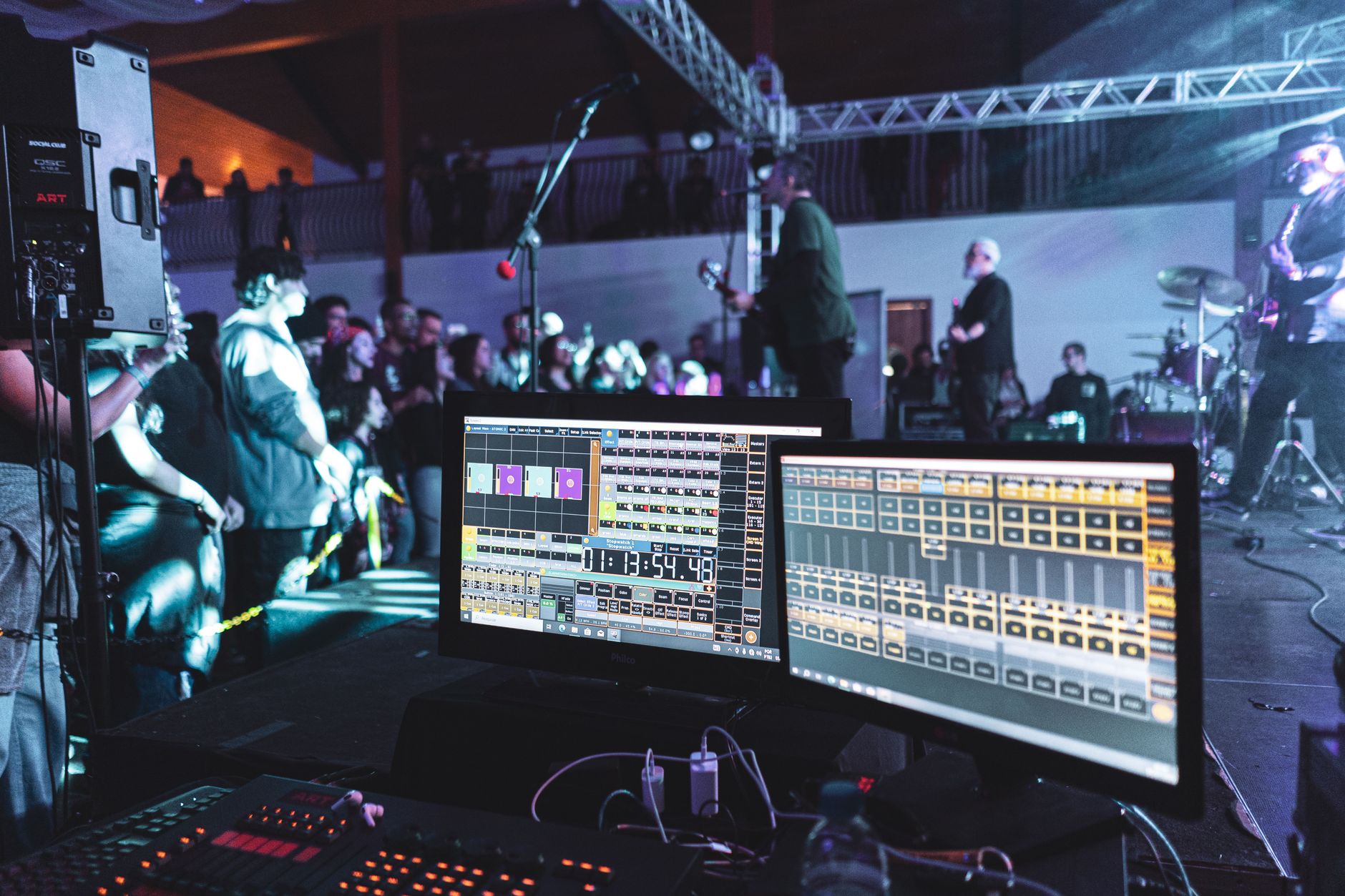
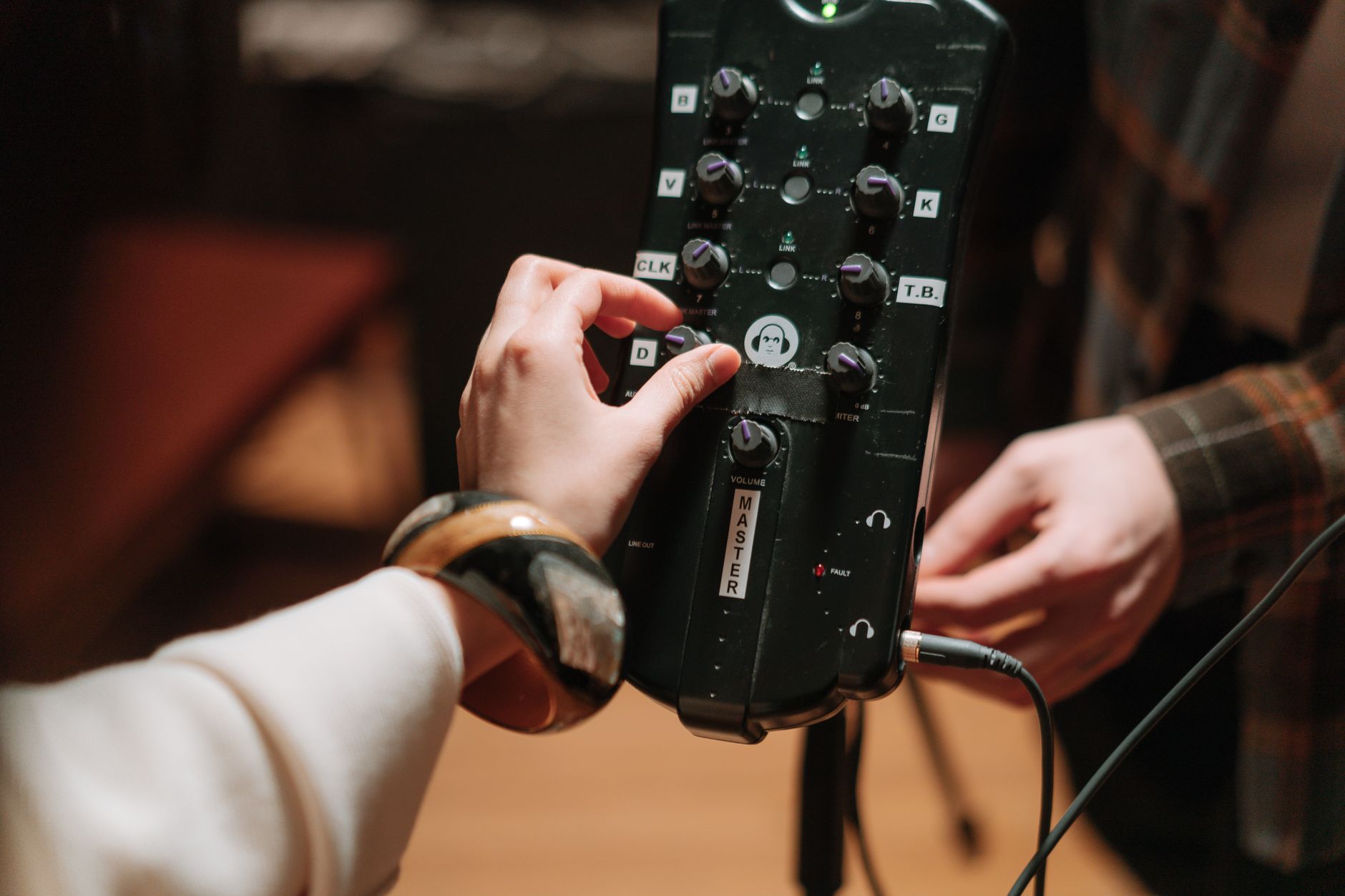
For DJs and producers, the cleanest source material is often already near the session: a macro shot of a synth knob, a club light reflection, smoke across a backlit room, or animated artwork built from the release cover.
Use the hook test
Mute the music and watch the loop three times. If you cannot describe it in five words, it is too busy. “Red laser through smoke” is strong. “Girl, car, logo, city, waveform” is noise.
We see this constantly with exclusive-licensing releases: one strong visual identity usually beats a pile of generic assets because the track has one owner, one mood, and one release story.
- Club track: lights, hands, decks, smoke, motion blur.
- Melodic track: slow landscapes, soft gradients, abstract shapes.
- Trap or bass track: hard cuts, close texture, sharp contrast.
- Vocal track: silhouette movement, breath, fabric, shadow.
- Avoid visuals that look like stock footage with no link to the song.
Build the loop in the Spotify Canvas Maker
Use a dedicated vertical-loop workflow when you want speed without opening a full video editor.
The Spotify Canvas Maker from The Ghost Production is built for this exact job: turning artwork or short visual ideas into Canvas-ready assets. That matters when you are finishing release admin, stems, masters, artwork, credits, and promo copy on the same afternoon.
Start with cover art, then add motion
If you want to make spotify canvas content from existing artwork, avoid the lazy zoom-only move unless the image has depth. Separate foreground and background if possible, then animate one layer slowly. A 4-6 percent push over six seconds is enough.
For a loop, the first and last frame should feel related. Hard resets look amateur unless they are synced to an obvious downbeat or visual hit.
- Upload artwork or a short vertical clip.
- Crop for the center third first.
- Use subtle zoom, rotation, or light movement.
- Preview the loop without audio.
- Export only after the motion feels seamless.

Export cleanly and test on a phone
Your Canvas is not finished until it survives phone playback, compression, and a dark-room brightness check.
Export as MP4 when possible, keep the file under Spotify’s current limit, and do not crush the image with repeated uploads through messaging apps. Send yourself the final file directly, then open it full-screen on a phone. If it looks mushy there, it will look mushy on Spotify.
Phone checks catch the ugly stuff
When you make spotify canvas clips for dark electronic tracks, watch the blacks. Over-compressed smoke, lasers, and gradients can band badly. Lift the shadows a touch instead of smashing contrast.
Also check the loop point. If your visual jumps every six seconds, listeners will notice before they notice your kick transient.
- Watch once at full brightness.
- Watch once at 40 percent brightness.
- Check the first-to-last-frame loop point.
- Look for banding in gradients and smoke.
- Avoid sending the export through compressed chat apps.
Upload it inside Spotify for Artists
The upload step is simple, but the release timing still matters.
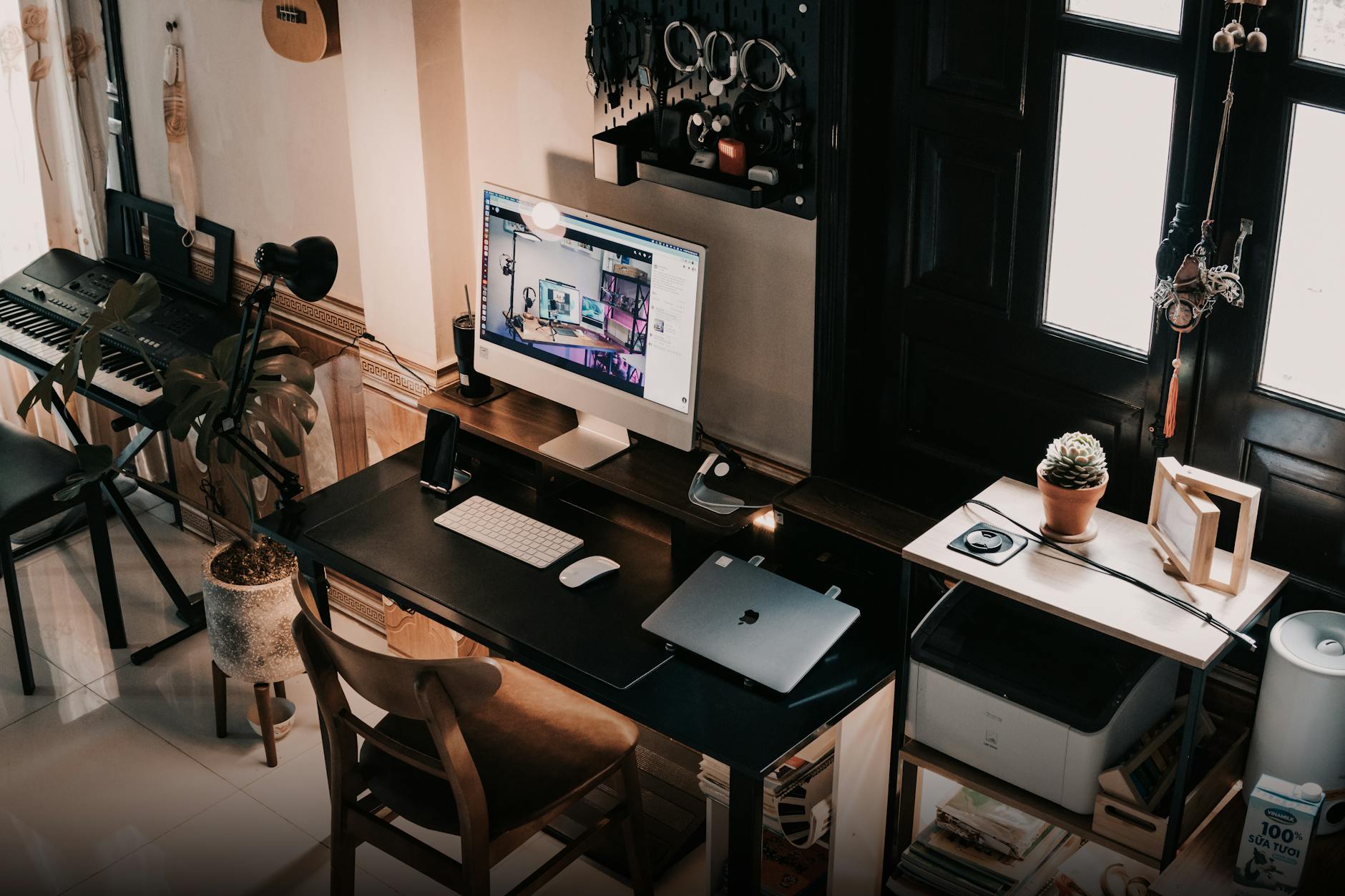
Canvas is managed in Spotify for Artists. Pick the track, add the video loop, preview it, then save. If the option is not available, check territory, artist access, release status, and whether the track has fully processed. Do this before release day if you can. Last-minute visual fixes are where tiny mistakes become public.
Keep the Canvas tied to the campaign
Use the same visual language across teaser clips, cover art, and short-form posts. You do not need identical assets everywhere, but the color palette should feel related. If the Canvas is red strobes and the cover is pastel clouds, something is off.
A strong Canvas will not save a weak release, but it can make a good record feel more finished when a listener lands on the track page.
- Upload through Spotify for Artists.
- Preview before saving.
- Check artist-account permissions.
- Keep colors close to the cover art.
- Update the Canvas if the campaign direction changes.
| Option | Best for | Watch out for | Speed |
|---|---|---|---|
| The Ghost Production Spotify Canvas Maker | Fast Canvas-ready loops from artwork or simple visual ideas | Still needs a phone check before upload | Fast |
| CapCut | Manual edits, phone-shot footage, simple cuts | Templates can look generic if left untouched | Medium |
| Adobe Premiere Rush | More controlled crops and exports without a full edit suite | Slower if you only need one clean loop | Medium |
| Spotify for Artists | Uploading and previewing the finished Canvas | Not a creation tool, only the final upload point | Fast |
Worth a deeper read: Canvas.
Questions producers actually ask
How do I make spotify canvas for a new release?
Create a 3-8 second vertical 9:16 loop, export it cleanly as a short video file, then upload it through Spotify for Artists on the track page. Test the loop on a phone first so you catch crop issues, compression, and ugly loop jumps before saving it publicly.
What size should a Spotify Canvas be?
A safe working size is 1080 x 1920 px in a 9:16 vertical frame. Spotify Canvas clips are short, usually 3-8 seconds. Keep important visual detail near the center because app controls and screen differences can make edge details less useful.
Can I use my cover art as a Spotify Canvas?
Yes, and it often works well if you add subtle motion. A slow zoom, animated light pass, separated foreground layer, or moving texture can turn static cover art into a clean loop. Avoid simply bouncing the cover around the frame.
Does Spotify Canvas help streams?
Canvas is not a magic stream button. It helps the release feel more complete and can improve how memorable the track page feels. Treat it as part of the release package, alongside cover art, clips, credits, and the track itself.
What to remember
- Build Canvas clips in 9:16 vertical format from the start.
- Use one strong visual idea instead of a busy mini video.
- A 3-8 second loop needs a clean first-to-last-frame transition.
- Phone testing catches crop, brightness, and compression problems.
- Upload the finished Canvas through Spotify for Artists.
Wrapping up
The cleanest way to make spotify canvas assets is to stop treating them like full music videos. Pick one visual hook, crop it vertically, keep the loop short, and test it on a phone before upload. The difference between “fine” and “finished” is usually small: a better center crop, less contrast in the shadows, a smoother loop point, or artwork motion that actually matches the track. Before your next release, build one Canvas early in the campaign, sit with it for a day, then check it again beside the cover art and teaser clips.
My Career makes videos from your own track and posts them for you, pitches your release to 34,000+ labels, playlists, radio stations, YouTube channels and blogs, puts it in every store and briefs you every morning. Free plan, no card, two minutes to set up.