 By TGP Production Desk · August 3, 2026
Spotify canvas is the 3-to-8-second vertical loop that can make your track feel finished before anyone hears the first drop. The problem is that most artists treat spotify canvas like a random phone video, then wonder why it crops badly, looks soft, or refuses to upload inside Spotify for Artists.
I see this constantly with independent artists and professional music producers: the audio is serious, the cover art is decent, but the moving asset feels like an afterthought. A good loop does not need a film crew. It needs the right dimensions, one clear visual idea, and an edit that survives being watched ten times in a row. If you are a DJ, bedroom producer, vocalist, or artist prepping a release package, this is the workflow I would use before the track goes live.
What Is spotify canvas Supposed to Do for a Track?
A Canvas is not a music video. It is a short vertical loop attached to a track on Spotify, shown on the Now Playing screen for listeners using the mobile app. It can be a video clip, a simple animation, or a looped visual built from your artwork.
The job is simple: make the track easier to remember. If your record is a dark melodic techno cut, a shaky beach selfie fights the music. If your single is a vocal garage tune, a tiny lyric fragment, tape machine movement, or a cropped club light pulse can make the release feel intentional.
Why spotify canvas Works Best When It Does Less
The strongest loops usually have one motion idea. A rotating object. A flickering light. A camera push through smoke. A waveform-style pulse that hits every two bars. The listener is not studying it like a film. They are glancing at it while deciding whether to save, share, or skip.
Aim for a clean visual hook rather than a full story. Your cover art already handles identity. Your spotify canvas should add movement without pulling attention away from the song.
- Use one visual idea, not five competing shots.
- Match motion speed to the track energy.
- Avoid tiny text because mobile compression murders it.
- Keep faces, logos, and brand marks cleared before upload.
- Test the loop muted before pairing it with the track.

What Are the Spotify Canvas Dimensions I Actually Need?
The practical answer: build vertically, export cleanly, and leave breathing room near the edges. The standard Spotify Canvas dimensions are 9:16 vertical, with a minimum of 720 pixels wide and a file length between 3 and 8 seconds. I prefer working at 1080 by 1920 pixels, then exporting an MP4 if the file size behaves.
Do not build in landscape and crop later unless you enjoy fixing ugly framing at midnight. Start vertical from the first frame. Put the main subject in the central safe area, especially if you are using artwork, because phone screens and app controls can make edge details feel cramped.
What Export Settings Keep the Loop Clean?
Export H.264 MP4 when your editor gives you the option. Keep the file under Spotify’s current upload limit, and avoid heavy film grain, flashing strobes, and ultra-fast camera movement because those can break down after compression.
For a clean release asset, I usually render at 1080 by 1920, 24 or 30 fps, 6 seconds long, with a simple loop point. If the motion jumps when it restarts, fix that before upload. A bad seam gets annoying fast.
- Canvas ratio: 9:16 vertical.
- Safe working size: 1080 by 1920 pixels.
- Length: 3 to 8 seconds.
- Format: MP4 is the safest everyday choice.
- Loop: first and last frames should feel connected.
Which Spotify Canvas Maker Should I Use If I Am Not a Designer?
If you just need a release-ready loop, use the simplest tool that lets you hit the spec without fighting the software. Canva, Adobe Express, and CapCut are enough for most artists. After Effects is better when you need precise motion, masking, 3D camera moves, or a custom visual package across multiple singles.
My blunt take: most bedroom producers should start with Canva or CapCut, not After Effects. You are trying to ship a release asset, not spend two days keyframing a particle system while the master is still unchecked.
Is a Spotify Canvas Maker Free Option Good Enough?
Yes, if the idea is simple. A Spotify Canvas maker free workflow can work well for cover art animation, blurred live clips, waveform-style movement, or a repeating texture. The weak point is usually taste, not the software.
Keep exports clean, avoid default templates that look like everyone else’s promo post, and do not slap animated text over the whole frame. A free tool with a restrained idea beats expensive software with messy direction.
- Canva: fastest for animated artwork and templates.
- CapCut: strong for phone-shot clips and quick timing edits.
- Adobe Express: clean middle ground for branded release assets.
- After Effects: best for custom motion design and tight loops.
- Photoshop plus a video editor: useful for still-art animation.
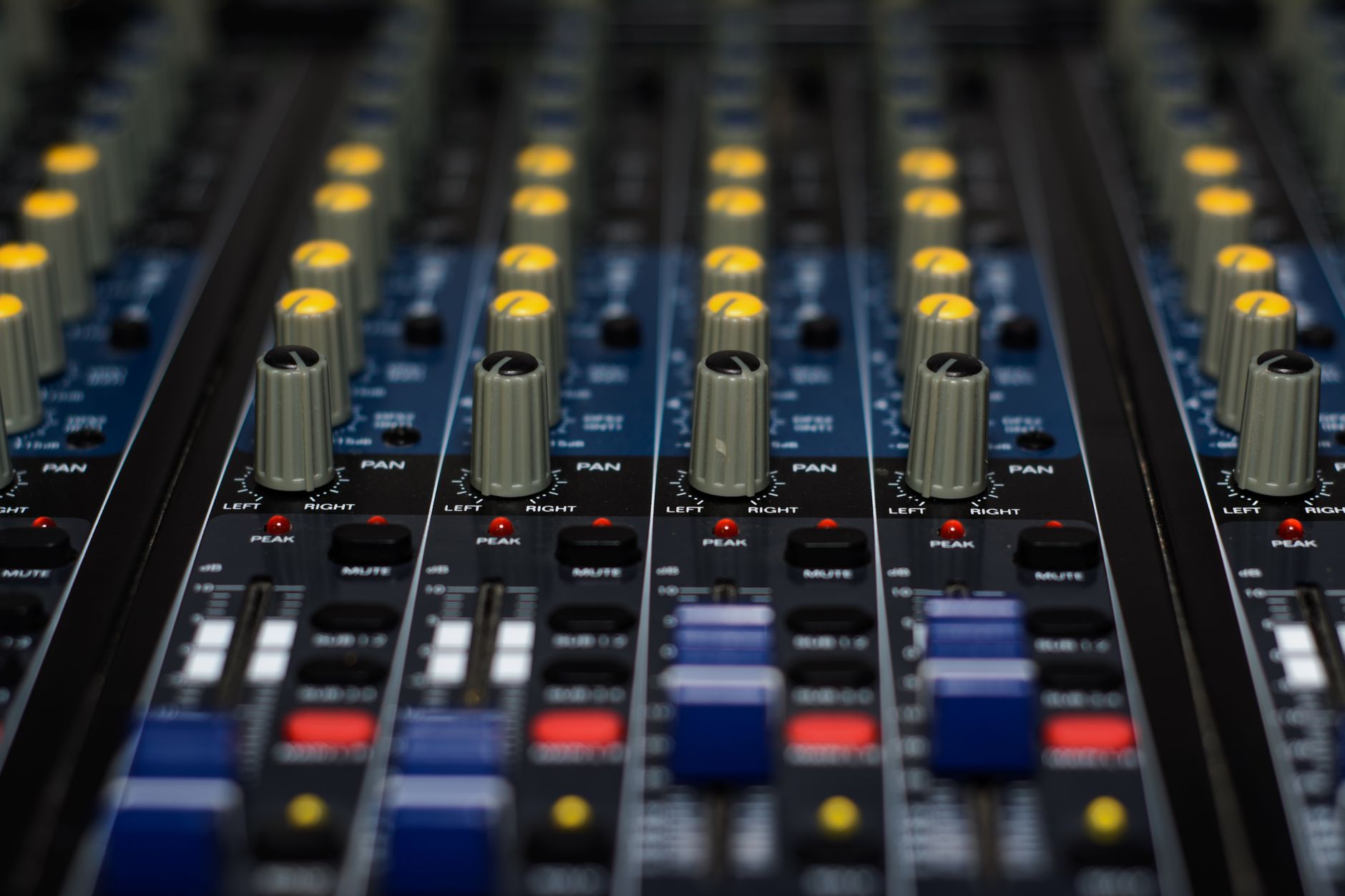
What Should I Put in the Loop If My Track Has No Video Shoot?
You do not need a video shoot to make a good spotify canvas. Most electronic releases can use movement from the track’s visual identity: artwork layers, club textures, synth hardware close-ups, waveform-inspired shapes, or a looping object that fits the title.
Think like a DJ packing a USB. Every element should have a reason. If the track is a late-night progressive cut, use slow movement, dark contrast, and one light source. If it is a punchy tech house record, tighter cuts and rhythmic motion will feel more honest.
My spotify canvas Template for Non-Video Releases
Start with your cover art at 1080 by 1920. Split it into foreground, subject, and background layers. Add a slow 3 to 5 percent zoom to the background, a tiny left-to-right drift to the subject, and a light grain or dust layer at low opacity.
For a 128 BPM track, I like a 4-second or 6-second loop because it can feel close to a musical phrase without needing exact beat sync. If the motion lands near the snare or clap, even better, but do not overthink frame-perfect timing for a mobile visual.
- Animate your cover art with slow parallax.
- Crop a clean phone clip of lights, vinyl, gear, or location.
- Use abstract motion that matches the track palette.
- Loop smoke, water, tape reels, shadows, or reflections.
- Build one visual family for all tracks on an EP.

How Do I Upload a Spotify Canvas Without Breaking the Release?
You upload it through Spotify for Artists after the track is available in your artist dashboard. Open the song, choose the Canvas option, upload the file, preview it, then save. If the track was delivered through a distributor, the audio and metadata still come from that delivery. The loop is handled on the artist side.
Do not leave this until release day if your campaign depends on it. Sometimes a new artist profile, split artist page, or distributor timing issue means the track is not ready in the dashboard when you expect it. Build the file early so the only job left is uploading.
What Should I Check Before I Hit Save?
Watch the loop three ways: in your editor, in the upload preview, and on an actual phone after it updates. Look for crop problems, compression mess, flashing issues, and whether the first frame feels ugly when the track opens.
If you are coordinating artwork, teaser clips, and a pre-save campaign, name the file clearly. Something like artist-track-canvas-1080×1920-v2.mp4 saves more time than final-final-real-final.mp4 when the release folder gets crowded.
- Confirm you have access to the correct Spotify for Artists profile.
- Check the song is visible in your dashboard.
- Upload the vertical MP4 and preview the crop.
- Save, then verify on mobile after processing.
- Keep the source file in your release asset folder.

Why Is Spotify Canvas Not Working on My Phone or Artist Profile?
Spotify Canvas not working usually comes down to one of four things: the listener setting is off, the app is out of date, Data Saver is enabled, or the track/profile does not currently support the feature in your situation. Before blaming the file, test from another phone and another account.
On the artist side, failed uploads are often boring technical problems. Wrong length. Wrong aspect ratio. File too large. Corrupt export. Weird codec. Re-exporting as a clean H.264 MP4 at 1080 by 1920 fixes a surprising amount of pain.
What About Spotify Canvas Available Countries?
Availability can vary by region, device, app version, account settings, and Spotify’s current rollout. The safest move is to treat Spotify Canvas available countries searches as a clue, not a final answer, because feature access can change.
If a fan cannot see your Canvas, ask them to update the app, turn off Data Saver, check playback settings, and test on mobile. Desktop is not the right place to judge it.
- Update the Spotify mobile app.
- Turn off Data Saver if Canvas is hidden.
- Check Canvas playback settings on the listener account.
- Re-export the file if upload fails.
- Test on a second phone before rebuilding the visual.
Can I Use a Spotify Canvas Downloader or Copy Someone Else's Loop?
Do not build your release around a Spotify Canvas downloader. Even if you find a third-party tool claiming it can save someone else’s loop, that does not give you rights to reuse the footage, animation, artwork, or performance. It is the same bad habit as ripping a vocal and hoping nobody notices.
Reference is fine. Theft is not. Pull ideas from good Spotify Canvas examples, then rebuild the concept with your own artwork, footage, or commissioned assets. If a loop belongs to a videographer, designer, label, or another artist, get permission in writing before using it.
What Can I Safely Borrow From Other Artists?
You can borrow structure, not assets. For example, you might notice that a techno artist uses one mechanical movement, low contrast, and a slow center crop. That is a direction. Taking the actual video clip is the problem.
Make a swipe folder with notes like slow parallax, looped hand movement, monochrome streetlight, or cover art zoom. Those notes help you brief a designer or edit your own loop without copying the finished work.
- Save references as mood notes, not reusable assets.
- Use your own footage or properly licensed stock.
- Clear any model, location, logo, or artwork rights.
- Avoid ripping another artist’s Canvas.
- Keep written permission with your release files.

What Makes Good Spotify Canvas Examples Feel Expensive?
The best loops feel expensive because they are controlled. They do not throw every visual trick at the listener. They use good framing, limited color, a clean loop point, and motion that matches the track’s pocket.
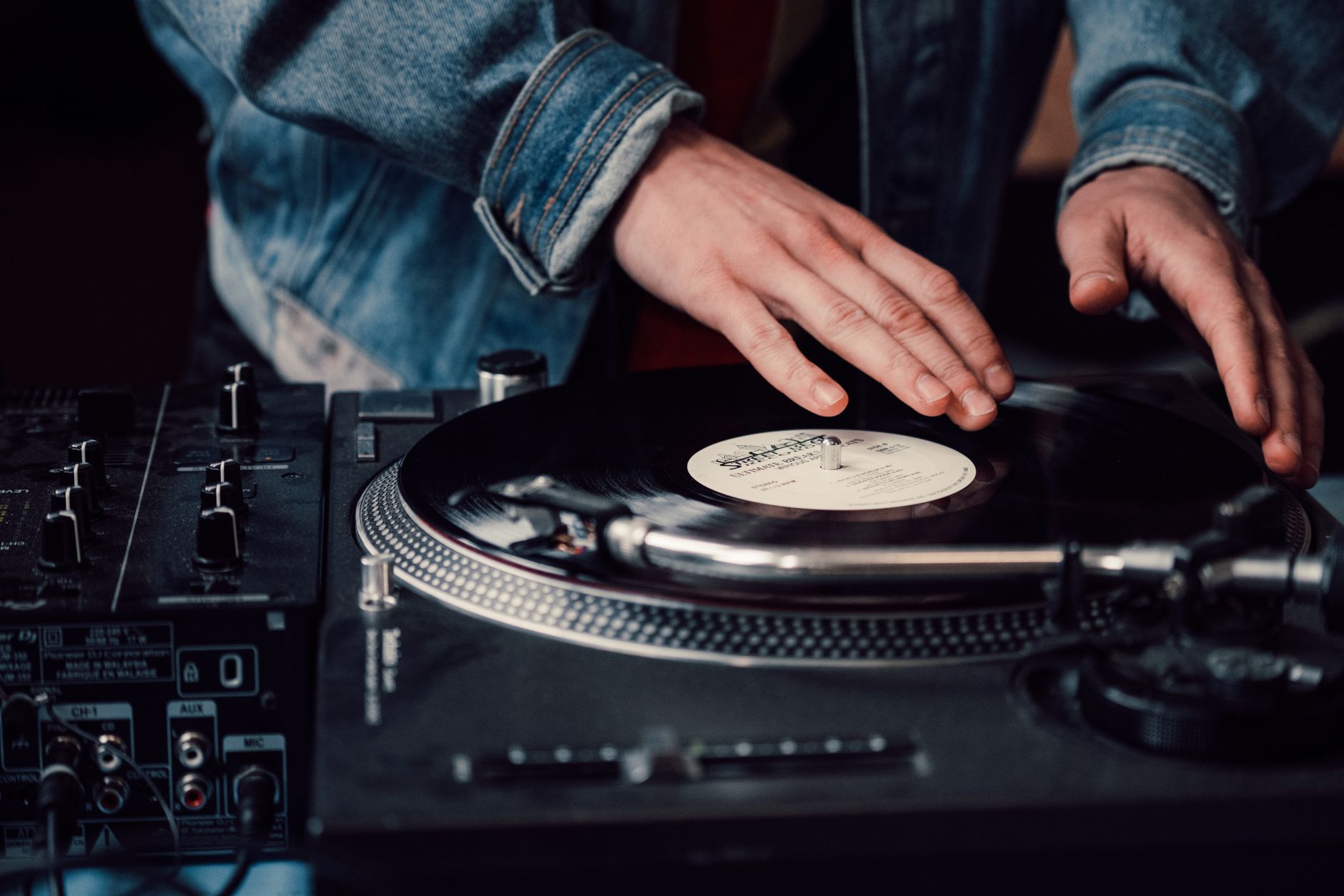
For dance music, I would rather see a tight, tasteful 6-second loop of a turntable, compressor VU meter, night road, or animated artwork than a chaotic montage from a random gig. Your track already has movement. The visual should support that movement, not compete with it.
How Do I Judge the Loop Before Upload?
Mute it first. If the loop still tells me something about the release, the visual idea is probably working. Then play the track under it and check whether the motion feels too slow, too frantic, or unrelated to the groove.
Finally, shrink the preview on your monitor or view it on your phone from arm’s length. If the subject disappears, the composition is too fussy. Mobile visuals punish tiny details.
- One subject dominates the frame.
- The color palette matches the cover art.
- The loop seam is nearly invisible.
- Motion fits the track’s tempo and mood.
- The image still reads clearly on a small phone screen.
| Tool | Best Use | My Take |
|---|---|---|
| Canva | Animated cover art, simple templates, fast resizing | Best first stop for artists who need a clean asset today. |
| CapCut | Phone-shot clips, timing cuts, light effects, mobile editing | Great when you already have footage and want speed. |
| Adobe Express | Branded social and Canvas assets from one visual system | Useful for keeping artwork, teasers, and loops consistent. |
| After Effects | Custom motion design, masks, parallax, precise loop points | Worth it when the release campaign needs a bespoke visual identity. |
Worth a deeper read on this: Canvas and Canvas guidelines.
Frequently asked questions
What is spotify canvas on Spotify?
spotify canvas is a short vertical looping visual attached to a track on Spotify’s mobile Now Playing screen. It lasts 3 to 8 seconds and can be video, animation, or moving artwork. Artists upload it through Spotify for Artists when the track is available on their profile.
How do I see the Canvas on Spotify?
Open Spotify on mobile and play a track that has Canvas enabled. The loop appears on the Now Playing screen, not usually on desktop. If you cannot see it, update the app, turn off Data Saver, and check that Canvas is enabled in playback settings.
How do I get a Spotify Canvas for my own track?
Create a 9:16 vertical video or animation between 3 and 8 seconds, then upload it through Spotify for Artists on the track page. You need access to the correct artist profile. Use original or licensed visuals, and preview the crop before saving.
How do I turn on Canvas mode on Spotify?
On mobile, go to Spotify settings and look for Canvas under playback options. Make sure Data Saver is off, because it can disable Canvas playback. The exact menu name can change by app version, so update Spotify before troubleshooting deeper.
Why is Spotify Canvas not working after I uploaded it?
Give it time to process, then test on a mobile device. If it still fails, check the file length, aspect ratio, codec, and file size. Re-export as a clean 1080 by 1920 H.264 MP4, then upload again through Spotify for Artists.
What are the correct Spotify Canvas dimensions?
Build your Canvas as a vertical 9:16 asset. A safe working size is 1080 by 1920 pixels, with 720 pixels wide as the minimum. Keep the main subject away from the extreme edges so it survives mobile cropping and interface overlays.
The short version
- Build vertically from the start, ideally at 1080 by 1920 pixels.
- A strong Canvas uses one clear visual idea and a clean loop point.
- Free tools are fine when the concept is simple and the export is clean.
- Most upload issues come from wrong length, aspect ratio, codec, or app settings.
- Do not download or reuse another artist’s loop without permission.
- Judge the final asset on a phone, not only inside your editor.
Where to go from here
A good spotify canvas is not decoration. It is part of the release package, the same way cover art, metadata, and preview clips are part of the job. Build it early, keep the idea tight, export to the right dimensions, and test it on a phone before you call it finished.
If you are stuck, start with the simplest version: animate your cover art for six seconds, keep the motion slow, and make the first and last frames feel connected. Try that on your next release session, then compare it against three artists in your lane. You will hear the track differently when the visual finally fits.
My Career makes videos from your own track and posts them for you, pitches your release to 34,000+ labels, playlists, radio stations, YouTube channels and blogs, puts it in every store and briefs you every morning. Free plan, no card, two minutes to set up.