
Key takeaways
- export stems in ableton from a fixed bar 1 start so every file lines up.
- Use WAV, 24-bit, matched sample rate and normalisation off for serious delivery.
- Print or protect sidechain triggers, return effects and parallel buses before exporting.
- Name stems clearly with tempo, key and numbered musical groups.
- Always rebuild the mix from exported stems before sending the folder.
The first time I had to export stems in ableton for a paid handover, I was sitting in a freezing rehearsal room behind a railway arch at 1:40 a.m., bouncing a 124 BPM melodic house record through an old Focusrite 18i20 while the vocalist waited for a taxi outside.
The track sounded fine in the room. The problem was the delivery. I had a Soothe2 instance catching harshness on the vocal bus, FabFilter Pro-Q 4 cleaning 220 Hz out of the keys, and a sidechain compressor pulling the bass around the kick. Then I printed the files too casually. The remix producer called the next morning: the stems did not line up, the reverb tails were chopped, and the bass stem had lost its pump. That night taught me why export stems in ableton is not a menu click. It is a delivery craft.
How to export stems in ableton without wrecking the mix
I learned to stop treating stems like housekeeping. Stems are the track, just separated into useful pieces. If the kick, bass, drums, music and vocals do not rebuild the mix when dropped into a blank Ableton Live Set, something went wrong before the export window opened.
The safest way to export stems in ableton starts in Arrangement View. Session View can be brilliant for writing, but for delivery I want a fixed timeline, clear start point, clean end point and no mystery clips hiding off-screen.
The safest way to export stems in ableton from Arrangement View
I set the loop brace from bar 1 beat 1, even if the first sound starts at bar 17. Silence at the top is not wasted space. It is the reason every file drops into Pro Tools, Logic, FL Studio or a CDJ edit session without nudging.
Before I export stems in ableton, I duplicate the project and add DELIVERY to the filename. That copy is where I freeze heavy synths, commit risky automation and remove unused sketch tracks. The writing session stays messy. The delivery session behaves.
What counts as a stem
A stem is not every single track. Those are multitracks. For a DJ edit, remix, sync pitch or ghost production handover, I usually print practical groups: kick, drums, bass, synths, FX, lead vocal, backing vocals and sometimes master reference.
- Stems: grouped files that rebuild the record quickly.
- Multitracks: every channel printed separately for full mix control.
- Reference bounce: the full mix used to check the stems null close enough.
- Start every stem at bar 1 beat 1.
- Keep the same sample rate and bit depth for every file.
- Leave natural reverb and delay tails intact.
- Print a full mix reference in the same pass.
- Name files so a stranger can understand them.
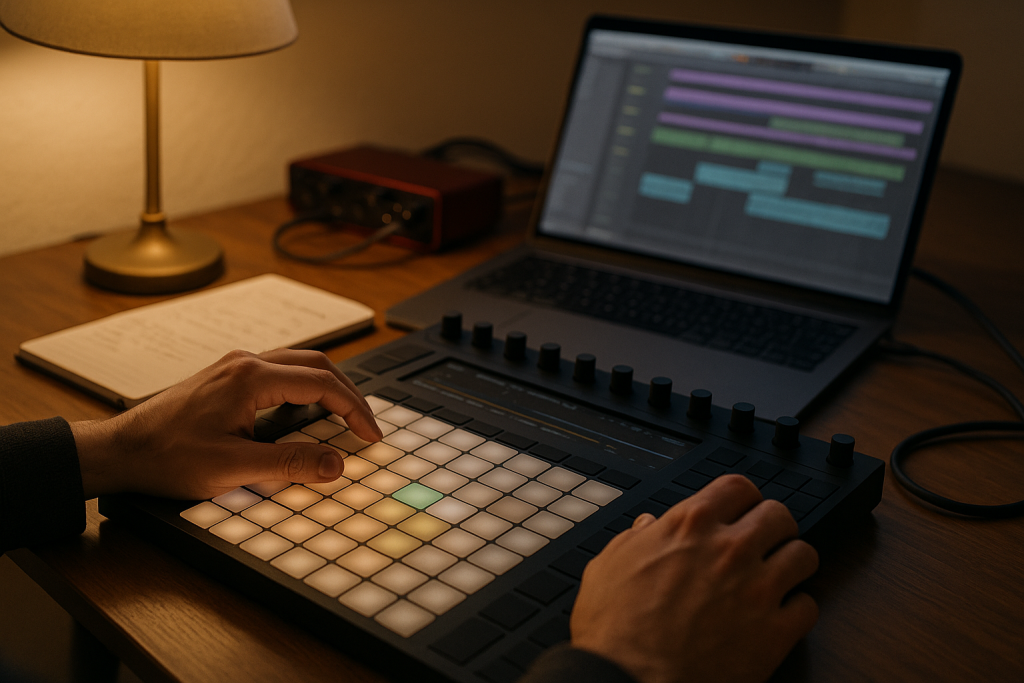
Clean up the session before you print anything
The worst stem exports I have received were not ruined by Ableton. They were ruined by clutter. Muted audio clips, forgotten return tracks, disabled sidechains and half-frozen synth racks create little traps. At 2 a.m., those traps become expensive.
When I export stems in ableton for a client, I work through the Set from left to right like I am packing a flight case after a show. Nothing random goes in the bag.
Commit the unstable stuff
Some plugins behave differently when offline rendering. Most are fine, but I do not trust random LFO modulation, external hardware returns or old freeware delays on deadline. If the sound is essential, I record it to audio.
Ableton’s Freeze and Flatten is useful, but I prefer resampling anything with attitude: a Moog-style bass from Diva, a granular vocal throw, or a washed Valhalla VintageVerb return that needs to land exactly before the drop.
Check routing like a tired engineer
Solo the stem group and ask one boring question: does this file contain everything it should? A vocal stem without its throw delay can feel naked. A drum stem with the sidechain trigger muted can lose the groove. Boring checks save phone calls.
- Rename groups before export: 01_Kick, 02_Drums, 03_Bass.
- Disable unused tracks, not just clips.
- Print external synths as audio before the final pass.
- Leave around -6 dB headroom on the full mix if no limiter is requested.
- Save a separate delivery copy.
- Freeze or print CPU-heavy instruments.
- Remove dead tracks and empty groups.
- Test every return channel that feeds a stem.
- Keep one full mix bounce for comparison.

The export window settings I trust
The export window is where people start guessing. I have seen stems arrive as MP3s, 44.1 kHz drums mixed with 48 kHz vocals, mono synths that used to be wide, and files normalised into clipping. None of that feels professional.
For most modern production delivery, I export stems in ableton as WAV files at the project sample rate, 24-bit, with normalisation off. If the session was built at 48 kHz, I stay at 48 kHz. I do not convert for fashion.
Render source matters
In Ableton Live’s Export Audio/Video window, Rendered Track is the decision that matters most. If I need grouped stems, I choose the group track one at a time, or use All Individual Tracks when the routing is simple. For complicated sends, I print groups manually.
Manual printing is slower. I still prefer it when reverbs, parallel drums or sidechain ducking define the record. Speed is not worth a broken groove.
My usual Ableton bounce settings
When I export stems in ableton for a remix or artist handover, my default is boring because boring opens everywhere. WAV, 24-bit, no dither unless reducing to 16-bit, no normalise, include return and master effects only when the stem needs them.
- File type: WAV for delivery, AIFF only if requested.
- Bit depth: 24-bit for production stems.
- Sample rate: match the project, often 44.1 or 48 kHz.
- Normalize: off.
- Dither: off for 24-bit exports.
- Use WAV unless the receiver asks for something else.
- Keep normalisation switched off.
- Match the session sample rate.
- Export from a fixed bar 1 start point.
- Check tails after the last chorus or outro.

Sidechains, returns and effects are where stems go wrong
My near-disaster in that railway arch was not caused by bad audio quality. It was caused by feel. The bass stem no longer ducked against the kick because I printed it without the trigger path active. The waveform looked fine. The record sagged.
That is the part nobody tells beginners when they first export stems in ableton. Technical alignment is only half the job. The bounce has to preserve the movement that made the track work.
Print the pump, not just the sound
If the bass is sidechained to a muted kick ghost track, keep that trigger alive during export. The listener does not need to hear the ghost kick, but the compressor does. I often keep a hidden track called SC_Kick and make it impossible to delete by accident.
For LFO Tool, ShaperBox or Ableton’s Compressor sidechain, I test one chorus after export. If the bass feels glued in the full mix but flat in the stem rebuild, I reprint immediately.
Decide what happens to reverb and delay
Dry stems are useful for a mix engineer. Wet stems are useful for a remixer trying to keep the vibe. I usually deliver both for lead vocals if the budget and deadline allow: Vocal_Dry and Vocal_Wet. For DJ tools, wet is often the better call.
- Print vocal throws if they are part of the hook.
- Keep drum room reverb with the drum stem unless asked otherwise.
- Export long FX tails past the final bar.
- Do not squash return effects through the master limiter by accident.
- Keep ghost sidechain triggers active.
- Print wet and dry vocals when the vocal sound matters.
- Check parallel drum buses in solo.
- Let delays and reverbs decay naturally.
- Rebuild the mix from stems before sending.
Naming and folders decide whether people trust the files
A stem folder can make a producer look organised or careless in five seconds. I once received a folder with Audio 7, Audio 7-1, final vox maybe and bass new real. The music was good. The delivery felt amateur.
When I export stems in ableton, I name files like they will be opened by somebody who has never heard the song and has a session starting in ten minutes.
A naming system that survives handover
My stem folders usually start with tempo and key, then clear numbered files. Something like Artist_Track_124BPM_Am_01_Kick.wav. The number keeps the folder in musical order. The tempo and key help DJs, editors and remixers move fast.
I avoid jokes, working titles and plugin notes in file names. Nobody needs Lead_Bad_Old_Sylenth_Actually_Final.wav three months later.
What I include in the delivery folder
A proper folder is not huge. It is clear. I include stems, a full mix reference, sometimes a mastered reference, and a short text note with BPM, key, sample rate and any unusual routing. That note has saved me from explaining the same thing twice.
- 124 BPM, A minor, 48 kHz, 24-bit.
- Stems start at bar 1 beat 1.
- Vocal wet and dry included.
- No master limiter on individual stems.
- Put tempo and key in the folder or file name.
- Number stems in playback order.
- Use plain names: Kick, Drums, Bass, Music, Vocals.
- Include a full mix reference.
- Add a short delivery note.

Test the stems like a DJ, not an accountant
The final check is not staring at folder sizes. I drag the printed stems into a blank Ableton Set, line them up from bar 1, pull the faders to unity and press play. If the rebuilt version does not feel like the mix, I do not send it.
This is where export stems in ableton becomes a listening job again. I check the first drop, the vocal hook, the breakdown tail and the final outro. Four spots. Fast, but not lazy.
The null test is helpful, but feeling wins
A perfect null test is rare if stems include shared reverbs, master bus colour or time-based modulation. I still flip polarity against the full mix sometimes, just to catch obvious mistakes. If the kick vanishes and the hats smear, I know something is off.
After that, I listen like I am cueing it on a CDJ-3000. Does the intro have clean 4-bar phrases? Does the bass hit where it should? Would I trust this in a club booth with one monitor working? That test is brutally honest.
A final pass before delivery
Before I export stems in ableton for the last time, I make one final bounce after all fixes and label that folder FINAL_DELIVERY. Then I zip it once. No nested archives, no half-finished alternates, no mystery duplicates.
- Rebuild the track from exported stems.
- Compare against the full mix reference.
- Check the first transient at bar 1.
- Listen for missing sends or sidechains.
- Open one file in a fresh player to confirm it is not corrupt.
- Create a blank test session.
- Import every stem from bar 1.
- Compare the rebuilt mix to the reference bounce.
- Check the intro, drop, breakdown and outro.
- Send one clean zip folder.
| Delivery need | Best export choice | Why I use it | Watch out for |
|---|---|---|---|
| DJ edit or remix | Grouped WAV stems | Fast to arrange, easy to understand | Wet effects may need separate files |
| Mix engineer handover | Multitracks plus references | Gives full control over balance and processing | File count gets large quickly |
| Ghost production delivery | Stems, full mix and mastered reference | Shows the finished sound and keeps editing flexible | Master bus processing must be explained |
| Vocal feature | Dry vocal, wet vocal and instrumental | Lets the artist approve tone and wording fast | Delay throws can be forgotten |
Further reading
- Ableton Live manual — Official Ableton documentation for Live features, export behavior and session management.
- Sound On Sound — Long-running professional recording publication with detailed engineering articles on stems and mix delivery.
Frequently asked questions
How do I export stems in ableton so they line up?
Set the loop brace from bar 1 beat 1 and make every stem start there, even if it begins with silence. Use the same sample rate and bit depth for every export. After you export stems in ableton, drag them into a blank Set and check that the rebuild matches the full mix.
Should Ableton stems be WAV or MP3?
Use WAV for proper production delivery. MP3 is fine for a rough preview, but it is not what I send for remixing, mixing or ghost production handover. WAV at 24-bit keeps the files clean and opens reliably in every serious DAW.
Do I leave master effects on when exporting stems?
Usually no. I avoid printing individual stems through the full master limiter because it changes balances and can clip when stems are rebuilt. If master bus colour is part of the sound, I print a full mix reference and explain the chain clearly in the delivery note.
What stems should I send to a remixer?
I would send kick, drums, bass, music, FX, lead vocal dry, lead vocal wet, backing vocals and a full mix reference. If the track has a signature hook, print it separately. A remixer needs enough control without digging through forty tiny tracks.
Why do my exported stems sound different from the mix?
Shared returns, sidechain triggers, parallel buses and master processing are the usual suspects. Soloing a group can change what feeds compressors or reverbs. Rebuild the mix from the exported files and compare it to the reference before sending anything out.
Can I export all individual tracks from Ableton at once?
Yes, Ableton can export all individual tracks from the Rendered Track menu. I use that for simple sessions. For complicated routing with sends, ghost sidechain triggers or parallel compression, I print groups manually because it catches problems faster than a blind batch export.
Conclusion
Clean stem delivery is part engineering, part manners. The person opening the folder should not have to guess where the drop starts, why the vocal delay vanished, or which bass file is real. The habit that changed my own work was simple: treat every export like somebody else has to finish a deadline with it.
Next time you export stems in ableton, make a delivery copy, print from bar 1, keep the groove processing alive, and rebuild the track from the files before you zip them. Try it on an old project first. The mistakes show up fast, and that is exactly the point.
Export stems in ableton — Quick Recap
The fastest way to lock in export stems in ableton is to internalise the workflow above and repeat it on every project. Start small: pick one technique from this export stems in ableton guide, apply it to your next session, and audit the result against a reference track.
- export stems in ableton from a fixed bar 1 start so every file lines up.
- Use WAV, 24-bit, matched sample rate and normalisation off for serious delivery.
- Print or protect sidechain triggers, return effects and parallel buses before exporting.
- Name stems clearly with tempo, key and numbered musical groups.
Treat export stems in ableton as a habit, not a one-off — the producers who consistently nail export stems in ableton are the ones who run the same checks on every track. That’s the difference between a clean, club-ready master and a track that sounds great at home but falls apart on a real system.
In a real studio session, export stems in ableton comes down to the order in which you make decisions: reference first, gain stage second, then the creative work. Producers who treat export stems in ableton as a checklist instead of a vibe end up shipping more tracks.
Most producers and DJs undervalue export stems in ableton because the wins are invisible until the track plays back on a real system. Bake export stems in ableton into your template and the next ten projects benefit automatically.
When you struggle with export stems in ableton, the fix is rarely a new plugin. Loop a problem section, A/B against a reference, and isolate which element is breaking your export stems in ableton.
Treat export stems in ableton as a craft, not a chore. The producers releasing on the biggest labels lock export stems in ableton in early so they can spend their energy on melody and arrangement instead of fighting the mix.
My Career makes videos from your own track and posts them for you, pitches your release to 34,000+ labels, playlists, radio stations, YouTube channels and blogs, puts it in every store and briefs you every morning. Free plan, no card, two minutes to set up.