
How to Export from Rekordbox – USB for CDJ
How to Export from Rekordbox – USB for CDJ
As a DJ, few things are as crucial as ensuring your music library is properly organized and ready for a live performance. Understanding how to export Rekordbox to a USB for your CDJ setup is not just a technical skill; it’s a critical part of your gig preparation. This process involves transferring your meticulously curated playlists, cue points, and loops so they’re accessible on any CDJ unit, ensuring a seamless performance.
Rekordbox, developed by Pioneer DJ, has become an industry standard for music management among DJs. Its integration with Pioneer CDJs allows for a smooth transition from software to live performance, and with the advent of Rekordbox 6 in 2020, the platform has only grown more robust. In this guide, we’ll delve into the specifics of exporting your music from Rekordbox to a USB, highlighting key considerations, common pitfalls, and expert tips.
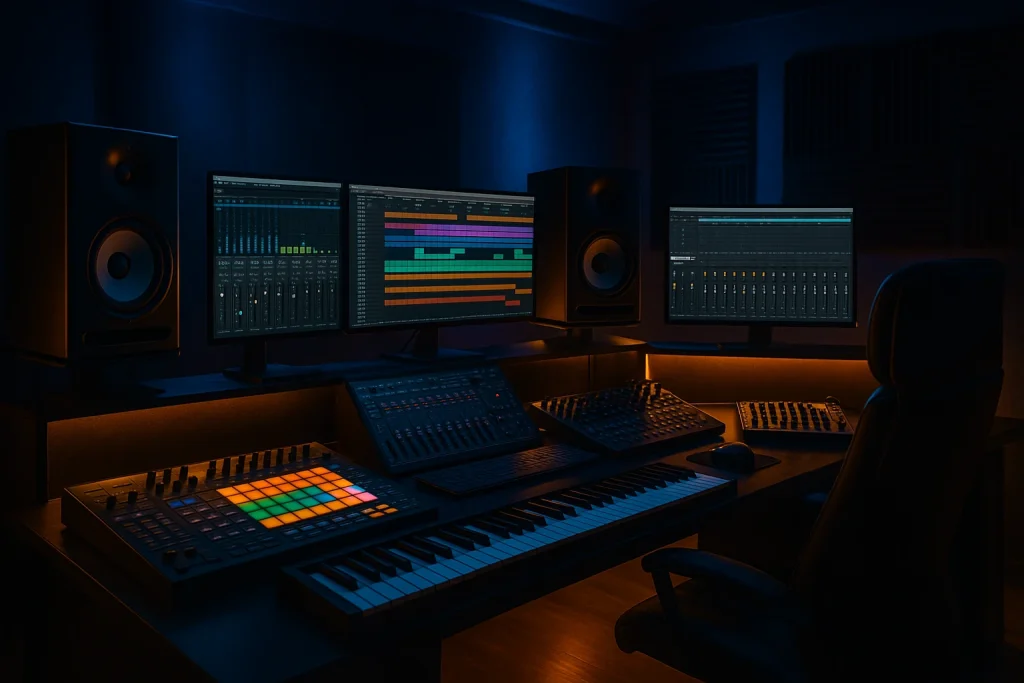
Whether you’re a seasoned professional or a newcomer to the DJ scene, understanding the intricacies of Rekordbox and its export functionalities can significantly enhance your performance capabilities. According to Beatport’s recent report on DJ software usage, Rekordbox holds a dominant 65% market share, underscoring its prevalence in the industry. Let’s explore how you can harness this tool to elevate your DJ sets.
Preparing Your Library for Export
Before you start the export process, it’s essential to have your music library well-organized within Rekordbox. This includes tagging your tracks, setting cue points, and creating playlists. Here are some key steps:
- Tagging and Metadata: Ensure all your tracks have the correct metadata. This makes searching and sorting much easier during a live set. Consider using SoundCloud for discovering new tracks and adding them to your library.
- Setting Cue Points: In Rekordbox, set up your cue points and loops for dynamic performance. This can be a game-changer when mixing live.
- Organizing Playlists: Create playlists that reflect the structure of your set. This can help in maintaining the flow of the performance.
Exporting to USB: Step-by-Step Guide
Once your library is ready, follow these steps to export your tracks to a USB:
- Insert Your USB: Connect your USB device to your computer. Ensure it is formatted in FAT32 or exFAT, compatible with most CDJs.
- Select Export Mode: Open Rekordbox and switch to Export mode. This mode is specifically designed for transferring data to USB.
- Drag and Drop: Drag your playlists to the connected USB device in Rekordbox. This will initiate the transfer process.
- Analyze Tracks: Ensure all tracks are analyzed for BPM and key. This is crucial for seamless mixing.
- Eject Safely: Once the export is complete, safely eject your USB to avoid data corruption.
Technical Details and Troubleshooting
While the process is straightforward, issues can arise. Here are some common problems and solutions:
Formatting Issues
If your USB is not detected, check its format. CDJs only recognize FAT32 or exFAT formats. Reformatting the USB might be necessary if it’s in NTFS.
Corrupted Files
File corruption can occur if the USB is removed prematurely. Always ensure to eject the USB safely. Regularly backup your library using cloud services like Apple Music for Artists.
Track Analysis
Tracks must be analyzed in Rekordbox before export. This includes BPM detection and waveform generation. Without this, you might face issues with waveform display on CDJs.
Best Practices for USB Management
Managing your USBs effectively can save you time and prevent mishaps during gigs:
- Label Your USBs: Use physical labels or color coding to differentiate between various playlists or genres.
- Regularly Update Your Library: Keep your USB library in sync with your Rekordbox updates to ensure you’re always ready with the latest tracks.
- Backup: Regularly back up your USBs to avoid losing data. Using a second USB as a backup can be a lifesaver.
Understanding the CDJ Export Workflow
Rekordbox’s export function is designed to work seamlessly with Pioneer CDJ systems. Historically, the integration between Rekordbox and Pioneer hardware has set industry standards, with notable DJs like Armin van Buuren and Carl Cox relying on this setup.
Performance Mode vs. Export Mode
Understanding when to use Performance Mode versus Export Mode is critical. While Performance Mode offers a virtual DJ setup within Rekordbox, Export Mode is optimized for transferring data to your USB.
Using Rekordbox Link
Rekordbox Link allows for real-time connection between the software and CDJs over a network. This is particularly useful for club setups with multiple CDJs, providing a seamless experience without needing multiple USBs.
Leveraging Exclusive Tracks for Your Sets
Incorporating exclusive tracks into your sets can significantly enhance your DJ profile. Platforms like Beatport offer unique tracks that can help distinguish your sets. Consider exploring custom track options through services like Exclusive Tracks for DJs to further enhance your music library.
Integrating exclusive tracks not only differentiates your live sets but also supports emerging artists and producers. For those looking to create custom tracks tailored to their style, ghost production services offer bespoke production solutions.
Comparative Analysis: Rekordbox vs Other DJ Software
When it comes to DJ software, Rekordbox is often compared to platforms like Serato and Traktor. Understanding these differences can help you decide the best tool for your needs:
| Feature | Rekordbox | Serato | Traktor |
|---|---|---|---|
| CDJ Integration | Excellent | Good | Fair |
| Library Management | Advanced | Moderate | Advanced |
| Performance Features | Comprehensive | Comprehensive | Comprehensive |
| Price | Moderate | Varies | Low |
While all three platforms have robust capabilities, Rekordbox’s seamless integration with Pioneer hardware makes it a preferred choice for many professional DJs. For those considering which software to invest in, our detailed comparison on best DJ software can provide additional insights.
Customizing Your DJ Brand with Unique Music
In today’s competitive DJ landscape, customizing your brand with unique music can set you apart. Branding tips for DJs often emphasize the importance of a unique sound. Utilizing custom tracks and exclusive edits, as discussed on DJ Edits and Bootlegs, can help carve out a distinct identity.
The Ghost Production offers a range of services to help DJs acquire custom tracks that align with their style. From ordering tracks made for your sets to understanding how ghost production works, these services create opportunities for DJs to innovate and experiment with their sound.
Frequently Asked Questions
How do I format my USB for Rekordbox export?
Ensure your USB is formatted to FAT32 or exFAT, as these are compatible with most CDJ models. This can be done using disk management tools on your computer.
Can I use Rekordbox with non-Pioneer equipment?
Yes, while Rekordbox is optimized for Pioneer equipment, it can be used with other controllers and mixers that support HID MIDI.
What should I do if my tracks aren’t showing on the CDJ?
Ensure your tracks are fully analyzed in Rekordbox and that the USB was ejected safely. Check that the file format is compatible with the CDJ model you are using.
How can I get exclusive tracks for my USB?
Consider purchasing exclusive tracks from platforms like Beatport and exploring custom production services like those offered by The Ghost Production.
Why is Rekordbox preferred over other DJ software?
Rekordbox is favored for its seamless integration with Pioneer hardware, advanced library management, and comprehensive performance features, making it ideal for professional DJ setups.
Last updated:
Stand Out From Every Other DJ
The DJs who get booked and remembered play music nobody else has. Commission exclusive ghost-produced tracks and edits made specifically for your sound.