
How to Prepare a USB Drive for CDJ – Step-by-Step
How to Prepare a USB Drive for CDJ – Step-by-Step
For DJs in 2026, understanding how to prepare a USB drive for CDJ is crucial. With the rise of digital DJing, the CDJ has become an industry standard for live performances, used by top artists like Carl Cox and Nina Kraviz. Having a properly prepared USB drive ensures a seamless performance and prevents technical hiccups during your set. In this guide, we’ll explore the best practices for formatting your USB drive, organizing your music files, and using software like Rekordbox to prepare for CDJ use.
The CDJ’s dominance in clubs and festivals across the globe is largely due to its versatility and reliability. Pioneer DJ’s CDJ series has evolved significantly since its introduction in the mid-1990s, with the CDJ-3000 being the latest flagship model. This evolution reflects the broader trend toward digital DJing, where USB drives have replaced bulky CD wallets. According to DJ Mag, 75% of professional DJs now rely on USBs for their performances, underscoring the importance of mastering this aspect of DJing.
Step 1: Choose the Right USB Drive
Not all USB drives are created equal, especially for DJing. When selecting a USB drive for CDJ use, consider factors like storage capacity, speed, and durability. A minimum of 32GB is recommended to store high-quality audio files and multiple playlists. However, for extensive music libraries, a 64GB or 128GB drive offers more flexibility.
The speed of your USB drive is equally important. Look for a USB 3.0 or 3.1 drive, as these offer faster data transfer rates, reducing load times during your set. Durability is another consideration, as your USB drive will likely endure frequent plugging and unplugging. Brands like SanDisk and Samsung are known for their reliability and are frequently recommended by industry professionals.
Step 2: Format Your USB Drive
Once you’ve chosen the right USB drive, the next step is formatting it correctly. CDJs typically support FAT32 and exFAT file systems. FAT32 is widely compatible but has a 4GB file size limit, which can be restrictive for longer audio files or high-resolution WAVs. ExFAT, on the other hand, supports larger files and is compatible with both Windows and macOS systems.
To format your drive, connect it to your computer and use the disk utility tool specific to your operating system. Ensure that your drive is free of any important data before formatting, as this process will erase all existing files.
Step 3: Use Rekordbox for Music Management
Rekordbox by Pioneer DJ is the industry-standard software for preparing music for CDJs. It allows DJs to analyze tracks, set cue points, and create playlists. Begin by importing your music library into Rekordbox. The software will analyze each track, providing essential metadata like BPM and key, which is crucial for seamless mixing.
Creating playlists in Rekordbox is straightforward. Organize your tracks by genre, mood, or energy level to easily find the right track during your set. You can also set cue points and loops, which will be saved to your USB drive and accessible on the CDJ.
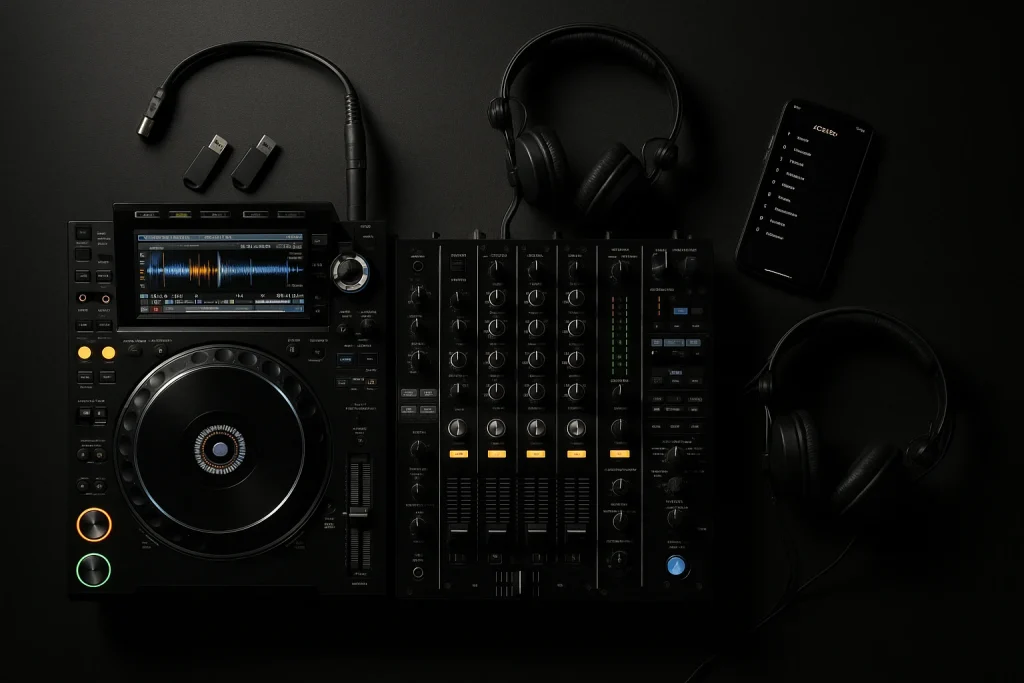
Step 4: Organize Your Folder Structure
A well-organized folder structure on your USB drive can significantly enhance your workflow. Start by creating a main folder named “Music” or “DJ Set.” Within this folder, create subfolders for each playlist or set. This structure allows for quick navigation during live performances, minimizing the risk of playing the wrong track.
Consider using a simple naming convention for your folders and files. For instance, you might name a folder “House_Set_June2026” and include track files with artist and track title information. Consistent naming ensures that your tracks are easily identifiable on the CDJ’s display.
Step 5: Test Your USB Drive
Before taking your USB drive to a gig, test it in a CDJ environment. If you have access to CDJs at home or in a studio, load your USB and navigate through your playlists. Ensure that all tracks load correctly, and test your cue points and loops.
Testing is crucial, as it allows you to identify any issues with track loading times or file compatibility. It’s better to resolve these problems in advance than to face them during a live performance. For those without access to CDJs, consider using a Rekordbox-compatible controller to simulate the experience.
Common Myths and Realities
There are several myths surrounding USB preparation for CDJs. One common misconception is that any USB drive will work without issues. In reality, using a low-quality or improperly formatted drive can lead to performance failures. Another myth is that Rekordbox is only necessary for professional DJs. In truth, even hobbyists can benefit from its organizational capabilities and performance enhancements.
Understanding these myths and realities can help you make informed decisions about your setup. For further reading on DJing techniques and equipment, consider exploring resources like Resident Advisor or MusicRadar.
Advanced Tips for Professional DJs
For DJs looking to elevate their performances, consider integrating custom tracks into your sets. Services like Custom DJ Tracks offer unique music tailored to your style, helping you stand out in a competitive landscape. Additionally, exploring exclusive music options can add a fresh dynamic to your playlist.
Professionals should also consider backing up their USB drives. Use cloud storage solutions or external hard drives to ensure your music library is safe. This precaution protects against data loss and keeps your performances consistent, regardless of technical issues.
| USB Drive Feature | Recommendation |
|---|---|
| Storage Capacity | 64GB or 128GB |
| Data Transfer Speed | USB 3.0 or 3.1 |
| File System | exFAT |
| Brand Reliability | SanDisk, Samsung |
Finally, stay informed about the latest industry trends and gear. Regularly check platforms like Beatport for new music releases and industry updates. For those navigating the complexities of music production, resources such as What Is Ghost Producing? provide valuable insights into leveraging ghost production services.
Frequently Asked Questions
What file formats are supported by CDJs?
CDJs typically support a range of file formats, including MP3, AAC, WAV, and AIFF. However, for the best audio quality, WAV and AIFF are recommended, especially for professional gigs.
Can I use any USB drive with a CDJ?
While most modern USB drives will work with CDJs, it’s important to choose a drive with a reliable brand, sufficient storage capacity, and fast data transfer speeds. Formats like exFAT are preferred for compatibility.
How do I organize my music on a USB drive for a CDJ?
Organize your music in folders by genre, playlist, or mood. Use a consistent naming convention for folders and tracks to easily navigate your library on the CDJ’s interface.
Is Rekordbox necessary for all DJs?
Rekordbox is highly recommended for all DJs, regardless of experience level. It offers features like track analysis, cue point setting, and playlist management, which enhance live performance capabilities.
What should I do if my USB drive isn’t recognized by the CDJ?
First, ensure your drive is formatted correctly (FAT32 or exFAT). If issues persist, try a different USB port or test your drive on another CDJ. Always carry a backup USB to avoid disruptions.
Last updated:
Stand Out From Every Other DJ
The DJs who get booked and remembered play music nobody else has. Commission exclusive ghost-produced tracks and edits made specifically for your sound.